Main Administrator Guide
In this guide we will run through the setup of a new organization.
1. Main administrator
Initial login
Each organization have one Main Administrator account called admin. The main administrator account is used for the configuration of the organization settings and to create other administrator accounts.
IMPORTANT: When you as the main administrator logs on to Synkzone for the first time and changes the password, Synkzone/the operating partner can no longer access your environment neither restore the password. The password selected needs to be securely stored.
Main administrator settings
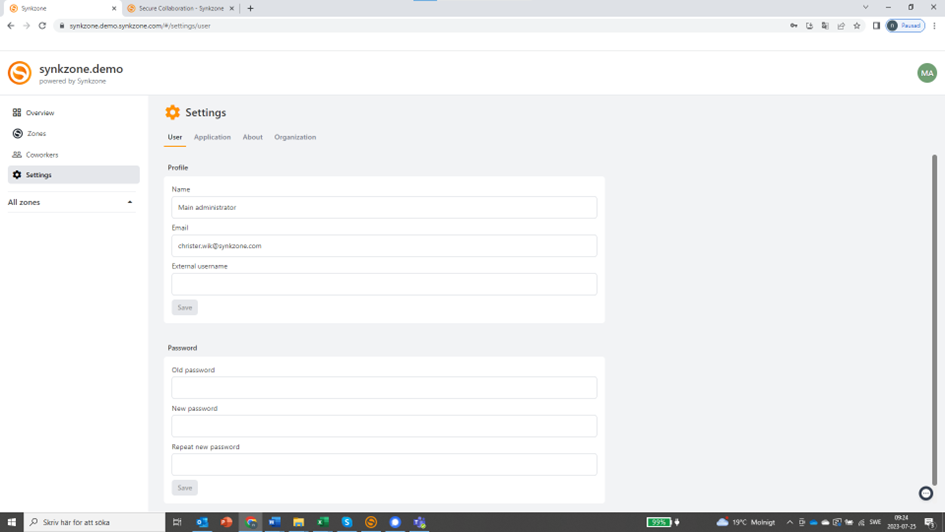
Go to ”Settings” and then the “User” tab. Here you’ll find the name and email of the appointed main administrator. This can be changed if someone else should have this role. It’s always recommended to have at least two email addresses connected to the main administrator accounts. These email addresses can also be used for other personal accounts in the organization.
2. Organization settings
The organization settings are located under ”Settings” and the tab “Organization”.
The settings are divided into different areas: accounts and sign in policy, identity providers, zones and privacy.
Accounts
Select the rules for a password length and expiration. Also select to prompt and force users to change password when logging on or when a password expires.
- Minimum password length: The minimum number of characters in a valid password
- Password timeout: How long a new password is valid until it must be changed.
- Password reminder interval: How often a user should be reminded to change password if not enforced.
- Enforce change of expired passwords: Require that expired passwords are changed.
- Enforce change of new passwords: Require that new, assigned, passwords are changed.
Sign in policy
At this section you will set the sign in policy for your organization. There are five (5) different options:
| Policy | Primary credentials | Secondary credentials |
|---|---|---|
| Local | Password * | - |
| Client verification | Password * | Emailed verification code when logging on first time on new client or with new password |
| Password always | Password | - |
| One time password | TOTP via authenticator application | (Password **) |
| Two factor authentication | Password and TOTP | - |
*Unless locally saved, first time on the specific client, or if the password has changed
**First time on the specific client, or if the password has changed
Identity providers
There are possibilities to connect Synkzone to different external identity providers.
Generic OIDC
If your IDP supports generic OIDC, the IDP can be used to log in to Synkzone accounts. For more information and setup instructions, contact Synkzone/the operating partner.
Swedish BankID
Synkzone offers the possibility to choose Swedish BankId as an alternative for personal identification and log on to Synkzone. To enable this for your organization, please contact Synkzone/the operating partner for more information.
Zones
If only administrators in an organization are allowed to create zones, no internal user will be able to create a zone of type “Personal”.
In the case where personal zones is allowed, decide if external users should be able to create personal zones or not.
Note: the settings “Only administrators can create zones” and “External users can create personal zones” are not able to both be true.
If personal zones are allowed, enter the size of storage and maximum number of allowed personal zones.
Privacy
We do recommend these to be left unchecked. It allows Synkzone/the operating partner to collect necessary information from logs to help during technical support. Synkzone/the operating partner will never have access to any files, data or information stored in the system.
3. Create administrator account(s)
Synkzone recommends all organizations to setup at least one administrator account and avoid working from the main administrator account for the daily usage. The main administrator account should not be used instead of a personal account.
Create a new administrator by clicking “Coworkers” and then “Create new user”.
Fill out the fields, Synkzone will suggest a username based up on the name written in the name field.
Select the type of user (authorization): in this case “Administrator”.
When pressing save an email with information will be sent to the new user. If you have chosen a log in policy that requires OTP a separate email with the QR-code and instructions will be sent.